A single photograph can hold an entire scene: a product on a marble counter, a character on a rainy street, a mountain ridge just before sunset. The trouble is that it just sits there. Adding motion used to mean animation software, stock footage, or a production budget.
Image-to-video models now take a still frame and generate a short clip with camera movement, subject motion, and shifting light in minutes. That shift has also popularized a search term: uncensored AI image to video. People use it to mean very different things, from looser creative limits to vague promises of “no rules.” This guide explains what the phrase actually describes, how the technology works, and how to evaluate tools responsibly.
What Is an Uncensored AI Image to Video Tool?
An uncensored AI image to video tool is a marketing label, not a technical category. It usually refers to an AI video generator that applies fewer or different content filters than mainstream platforms. Image-to-video AI itself is simple to define: you supply a still image, describe the motion you want, and a generative model produces a short video based on both.
“Uncensored” has no standard definition. One platform might use it to mean it allows stylized violence in fiction, another might mean it lets artists work with mature themes in legal, non-explicit ways, and another might use it purely as a hook. Because the word is unregulated, it tells you very little about what a tool actually permits. The only reliable source is the platform’s own published policy.
How Does AI Image to Video Work?
Image-to-video AI works by predicting how a scene could change over time, starting from one image. The process looks like this:
- Source image: Your photo or illustration becomes the reference image. It sets the composition, subject, colors, and lighting.
- Motion prompt: Your text describes what should move and how, such as a slow push-in or hair stirring in a breeze.
- Video model: A generative model, trained on large datasets, has learned patterns of how objects, light, and cameras typically move.
- Motion generation: The model produces a sequence of frames that stay visually tied to your original image while introducing believable movement.
- Final video: Those frames are assembled at a set frame rate, duration, resolution, and aspect ratio.
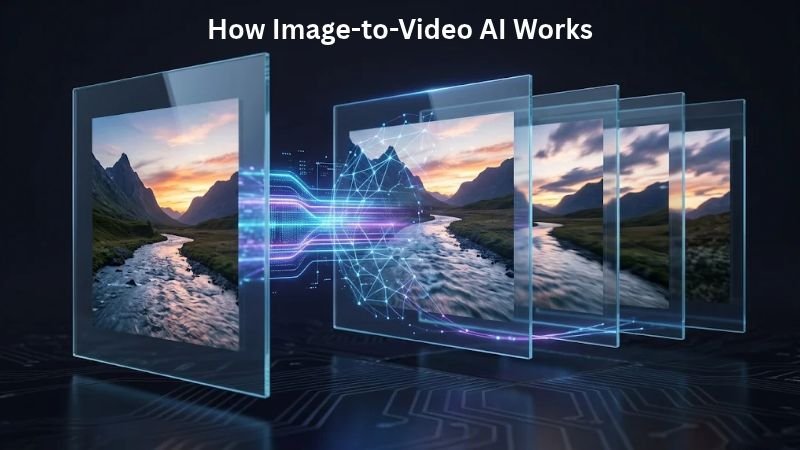
The hard part is temporal consistency: keeping a face, a logo, or a background stable from one frame to the next. Many of the visible flaws in AI-generated video come from the model struggling with exactly this. The same basic process sits behind every tool, including those marketed as uncensored AI image to video; the difference lies in the rules around it, not the underlying technique.
Why Are People Using Image-to-Video AI?
People use it because it turns assets they already have into motion content quickly and cheaply. Common uses include:
- Bringing illustrations to life: An artist can animate a character sketch or a painted landscape without frame-by-frame work.
- Product demonstrations: A product photo can become a short clip with a slow orbit or gentle light sweep.
- Social media content: Short-form platforms are built around video, so animating a still is a fast way to fit the format.
- Marketing visuals: Teams can test several visual directions before committing to a full shoot.
- Concept visualization: Architects, designers, and game developers can preview a mood or environment.
- Storyboarding: Filmmakers can turn key frames into rough animatics to check pacing and camera angles.
- Cinematic experiments: Hobbyists explore lighting, atmosphere, and lens effects without gear.
The common thread is speed. Image-to-video rarely replaces a finished production, but it shortens the path from idea to something you can look at.
What Does “Uncensored” Mean in AI Video Generation?
In practice, it describes a platform’s moderation approach, not a lack of rules. Every AI video service operates under some combination of content filters, acceptable-use policies, legal obligations, and infrastructure or payment-provider requirements. Even tools that market themselves as permissive still prohibit categories of content, and some content is illegal to create regardless of the platform.
Here is what varies between platforms:
- Moderation approach: Some filter prompts before generation, some review outputs afterward, and some do both.
- Creative restrictions: Rules on depictions of violence, real people, politics, or sensitive themes differ widely.
- Terms of service: These define what you can generate, what you can publish, and what happens if you violate the rules, including account removal.
- Age and identity safeguards: Reputable services take these seriously, and they are not obstacles to work around.
The table below summarizes general patterns for uncensored AI image to video platforms compared with mainstream ones, not the behavior of any specific product. Policies differ by company and change often.
| Factor | Typical mainstream platform | Platform marketed as “uncensored” |
|---|---|---|
| Content filters | Broader, often stricter | Narrower or differently defined |
| Published policy | Usually detailed and public | Varies; sometimes vague |
| Real-person likenesses | Often restricted | Varies; legal and ethical duties remain yours |
| Commercial licensing | Usually documented by plan | Varies; verify in the terms |
| Data and privacy disclosures | Usually documented | Varies; read carefully |
| Risk of false flags on creative work | Higher for dark or dramatic themes | Lower, but not zero |
| Legal responsibility for outputs | Shared, with more guardrails | Falls more heavily on the user |
Three points are worth stating plainly. First, “uncensored” never means unlimited. Second, fewer filters put more responsibility on you: legal, ethical, and reputational. Third, policies change often, so check the current rules before you depend on any platform for client or commercial work.
This article does not cover ways to evade a platform’s safeguards, and you should be wary of any source that offers them. Those methods tend to violate terms of service and can expose you to legal and security risks.
How to Turn a Still Image Into a Video
The most reliable workflow is to start simple and refine in small steps. Here is a process that works across most AI video generation tools, whether a service is mainstream or marketed as uncensored AI image to video:
- Choose a strong source image. Pick a sharp, well-lit image with a clear subject and uncluttered background. Models animate what they can clearly read. Blurry or heavily compressed images tend to produce blurry, unstable motion.
- Upload the image. Use the highest-quality original you have, and confirm you own it or have permission to use it.
- Describe the desired movement. Focus on one primary action. “The woman turns her head slowly toward the window” is easier for a model to execute than a chain of five actions.
- Add camera direction. Specify whether the camera should be static, push in, pan, or orbit. If you don’t, the model may invent a camera move you didn’t want.
- Select video settings. Choose duration, aspect ratio, and resolution based on where the video will run. Vertical 9:16 suits short-form social, while 16:9 suits YouTube and web use. Longer clips give the model more room to drift, so start short.
- Generate the clip. Expect to run a prompt more than once. Results vary between generations even with identical inputs.
- Review the result. Watch at full speed, then scrub frame by frame. Check hands, faces, text, logos, and edges, where flaws hide.
- Refine the prompt. Change one variable at a time. If the background wobbles, tighten the environment description. If the motion is too fast, say “slow” or “subtle.”
- Export the final video. Check what formats and resolutions your plan allows, and whether exports carry watermarks or usage restrictions. Then finish in your usual editing software with trimming, color, sound, and captions.
How to Write Better Image-to-Video Prompts
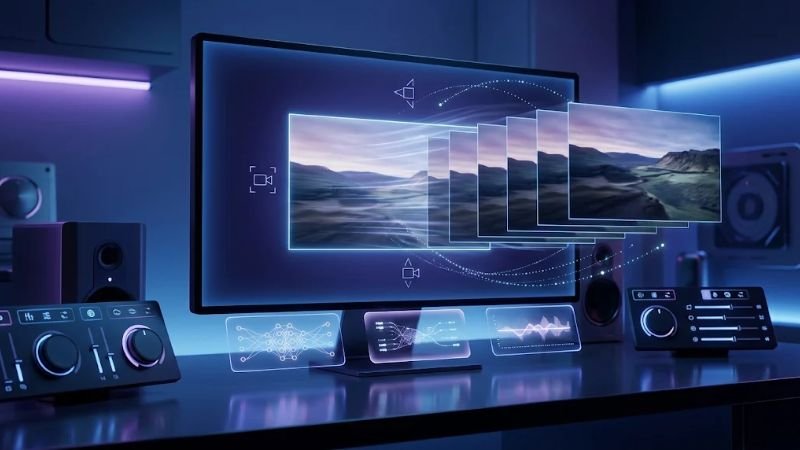
A good motion prompt names the subject’s movement, the camera’s movement, and the atmosphere, in plain language. In my experience, short, specific prompts usually beat long, poetic ones. Consider these elements:
- Subject movement: What moves, and how? Walking, turning, blinking, steam rising, fabric rippling.
- Camera movement: Static shot, slow dolly-in, gentle pan left, slow orbit.
- Speed: Slow, gradual, steady, subtle.
- Direction: Left to right, toward the camera, upward.
- Environment: Wind, rain, drifting fog, passing traffic, falling leaves.
- Lighting and mood: Warm late-afternoon light, soft overcast glow, moody blue dusk.
- Cinematic effects: Shallow depth of field, gentle lens flare, film-like motion.
A few original examples you can adapt:
- “A ceramic coffee mug on a wooden table, steam rising slowly, camera pushes in gently, warm morning light.”
- “A lighthouse on a rocky coast at dusk, waves rolling in, clouds drifting left to right, static camera, moody blue tones.”
- “An illustrated fox standing in a snowy forest, snow falling softly, fox glances toward the camera, slow zoom out.”
- “A sneaker on a concrete platform, slow 180-degree orbit, soft studio lighting, clean reflections.”
Each prompt describes one main action and one camera decision. That restraint is usually what separates a clean result from a chaotic one. Prompt syntax and supported controls differ by model, so check each tool’s documentation.
Common Problems With AI Image-to-Video
Most problems come from asking the model to do too much or giving it too little to work with. Here are the usual culprits and practical fixes:
- Distorted objects: Hands, text, and thin structures like bicycle spokes often warp. Choose images where those elements are simple or partly hidden, and reduce the amount of motion.
- Unnatural movement: Movement can feel floaty or rubbery. Ask for slower, smaller actions and shorter durations.
- Flickering: Frame-to-frame instability often shows in textures and fine patterns. Try a simpler source image, a shorter clip, or light deflicker processing in your editor.
- Background changes: Backgrounds may morph or drift. Describe the environment explicitly and ask for a static or minimal-motion setting.
- Character inconsistency: A subject can subtly change appearance mid-clip. Keep clips short and use a clear, front-facing reference image.
- Facial inconsistencies: Faces are where viewers notice flaws first. Avoid extreme expressions or fast head turns, and review closely before publishing.
- Camera movement problems: The camera may do something unrequested. State the move explicitly, or specify “static camera.”
- Low-quality source images: Upscale or replace low-resolution images before uploading. The model cannot reliably invent detail from noise.
- Unexpected motion: Elements you didn’t intend to move may animate. Name what should stay still.
Expect to discard some generations. Treating each attempt as a draft, not a final, saves frustration.
What Makes a Good AI Image-to-Video Tool?
A good tool balances output quality with control, transparency, and clear rights. Rather than chasing rankings, compare tools against your actual needs:
- Output quality and motion realism: Test with your own images, not just the showcase examples.
- Prompt control: Look for clear ways to direct camera and subject motion.
- Image consistency: How well does the result stay faithful to your source?
- Generation speed: This matters more when you iterate a lot.
- Resolution and aspect ratios: Confirm support for the formats your channels require.
- Editing options: Some tools offer extension, trimming, or regeneration of segments, and some don’t.
- Export formats: Check file types, watermarks, and quality limits.
- Pricing: Review the current pricing page directly. Credit systems and limits change frequently.
- Commercial-use rights: Read the license terms and confirm they cover your use.
- Privacy: Learn how uploaded images are stored and whether they are used to train models.
- Content policies: Confirm the rules are clear, published, and compatible with your work.
Run the same three or four test images through each tool you’re considering and compare. That tells you far more than a feature list. The same test works when you’re weighing an uncensored AI image to video service against a mainstream one.
AI Image-to-Video for Creators and Businesses
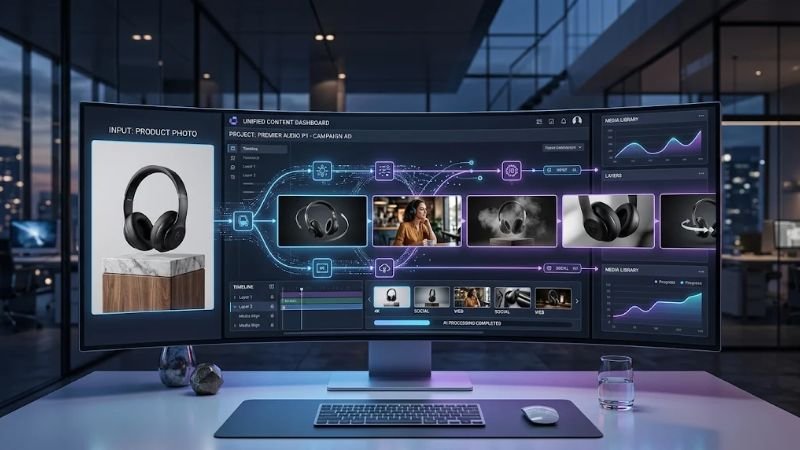
The best use cases involve short, supporting visuals rather than full productions. Some realistic examples:
- YouTube creators: Animate illustrated B-roll or historical images for explainer videos.
- Social media marketers: Turn campaign stills into short vertical clips for Reels, Shorts, and TikTok.
- Small businesses: Make simple promotional clips from existing product or storefront photos without hiring a video crew.
- E-commerce brands: Add motion to product listings, such as a rotating view or a subtle lifestyle scene.
- Advertising agencies: Prototype concepts quickly for client pitches before investing in production.
- Designers: Present motion studies of logos, packaging, or interface ideas.
- Filmmakers: Build animatics, test lighting moods, and pre-visualize shots.
- Bloggers: Add short animated visuals to articles to explain concepts.
In each case, AI-generated footage works best as one ingredient inside a larger workflow that includes human editing, sound, and brand review.
Copyright, Privacy, and Responsible AI Use
Responsible use starts before you upload anything. That matters even more on an uncensored AI image to video platform, where more of the judgment calls are yours. Key considerations:
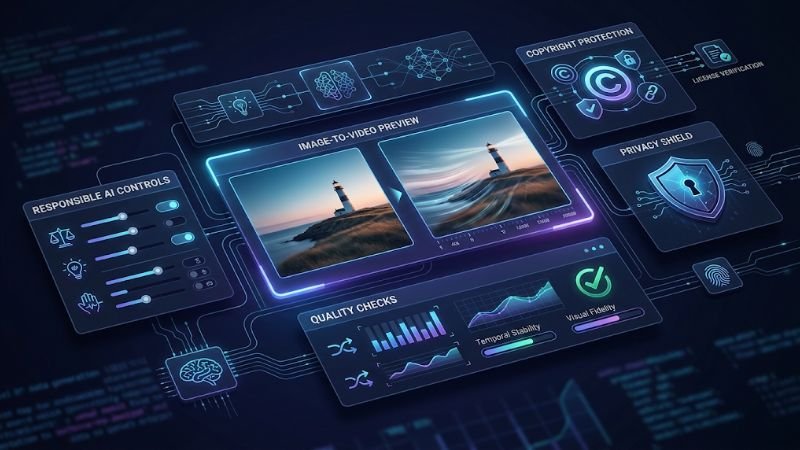
- Use images you own or have permission to use. Uploading someone else’s photograph or artwork doesn’t grant you the right to animate and publish it.
- Get consent for recognizable people. Animating a real person’s likeness without their agreement raises serious ethical and, depending on the situation, legal issues.
- Check commercial-use rights. A tool’s license may limit what you can do with outputs, especially on free tiers.
- Understand platform licensing. Read what rights you grant the platform when you upload content.
- Avoid misleading synthetic media. Don’t present AI-generated video as real footage, particularly involving real people, news events, or endorsements. Some platforms require disclosure of realistic synthetic content, so review each platform’s current labeling rules before you post.
- Protect private or sensitive images. Avoid uploading personal documents, images of minors, or anything you wouldn’t want stored on a third-party server.
On ownership, the U.S. Copyright Office has published a multipart report on copyright and artificial intelligence. Its copyrightability analysis says protection depends on human authorship, and that prompts alone generally don’t give a user enough control to be considered the author of AI output. Human contributions, such as your own source artwork or original editing and arrangement, can still be protected. This is a general summary, not legal advice, so consult the Office’s current guidance or an attorney for anything high-stakes.
If you publish AI-assisted content, Google’s guidance on using generative AI content says that using AI is not against its guidelines by itself. Content created mainly to manipulate search rankings, however, can violate its spam policies.
Is Uncensored AI Image to Video Right for Everyone?
No. Its usefulness depends on what you’re making and how much risk you can accept. Tools with looser filters can suit artists, filmmakers, and game developers working with dark or dramatic themes that stricter platforms sometimes flag by mistake, such as fictional conflict, horror, or fantasy imagery.
Caution is warranted if you’re producing brand or client work, since reputational risk can outweigh creative freedom. It also applies if you’re using real people’s likenesses, if you need clear commercial licensing, or if you’re uploading private material to a service with unclear data practices. Looser moderation can also mean fewer built-in safeguards, which puts more judgment on you.
For many users, a mainstream platform with clear policies and reliable licensing is the more practical choice.
Tips for Getting More Realistic AI Video Results
Realism usually comes from restraint. These habits apply whether you’re using a mainstream tool or an uncensored AI image to video service:
- Start with a high-resolution source image with clean lighting and clear subject edges.
- Keep motion simple. One primary action per clip.
- Write clear prompts that separate subject motion from camera motion.
- Control the camera. Slow, steady moves tend to look more convincing than dramatic ones.
- Maintain consistent composition. Avoid crowded scenes with many competing subjects.
- Generate short clips, then stitch them together in an editor.
- Iterate deliberately, changing one thing at a time.
- Review frame by frame before publishing, especially faces, hands, and text.
Frequently Asked Questions
What is uncensored AI image to video?
It is a loose term for AI image-to-video tools marketed as having fewer content restrictions. It isn’t a formal category, and every platform still has rules, so always read the current content policy.
Can AI turn a photo into a video?
Yes. Image-to-video AI takes a still photo and a motion prompt and generates a short clip. Quality depends on the source image, the model, and how clearly you describe the movement.
How does image-to-video AI work?
A generative model uses your image as a starting frame and predicts plausible subsequent frames based on patterns learned from training data. Your prompt guides what moves and how the camera behaves.
What is the difference between image-to-video and text-to-video?
Image-to-video starts from your existing picture, while text-to-video generates everything from a written description. Image-to-video generally gives you more control over the look of the first frame.
Why does AI video sometimes look distorted?
Models struggle to keep objects and faces consistent across frames. Fast motion, complex scenes, and low-quality source images make distortion more likely.
Can AI-generated videos be used commercially?
It depends on the platform’s license and on your source material. Read the terms for your subscription tier and confirm you have rights to the input images.
Are AI image-to-video tools safe to use?
They can be, but safety varies by service. Review the platform’s privacy policy, data retention practices, and content rules, and avoid uploading sensitive or private images.
What should I check before uploading an image?
Confirm you own it or have permission, that any people in it have consented, and that the platform’s terms allow your intended use. Also check how the service stores and uses uploads.
What makes one AI image-to-video tool different from another?
Differences include motion quality, prompt control, resolution, speed, pricing, licensing, privacy practices, and content moderation. Testing with your own images is the best comparison.
Conclusion
Uncensored AI image to video is best understood as a description of moderation style, not a promise of limitless output. The technology underneath is the same as any other image-to-video AI: a source image, a motion prompt, and a model that generates frames. What differs is policy, risk, and responsibility.
Whether you’re animating illustrations, building product clips, or storyboarding a film, the fundamentals matter more than the label: strong source images, simple prompts, careful review, and clear rights. Choose tools based on transparent policies and results you can verify, and treat copyright, consent, and privacy as part of the workflow.