By [aivistapro] · Updated October 2026
A few years ago, turning a rough idea into a moving clip meant learning animation software or hiring someone who already knew it. Now you can draw a scene on a notebook page, snap a photo, upload it, and watch it move a few minutes later.
That is the promise of sketch to video AI, and in 2026 it has moved well past the novelty stage. Designers use it to pitch ideas, marketers use it to test ad concepts before spending money on a shoot, teachers use it to bring lessons to life, and plenty of parents use it to animate their kids’ drawings just for fun.
In this guide, I will explain how sketch to video AI actually works, which tools are worth your time, roughly what they cost, where they fall short, and how to get results that still look like your drawing instead of a random AI guess. This space changes fast, so wherever prices or features are involved, I have flagged that you should double-check the official pages before you pay for anything.
What Is Sketch to Video AI?
Sketch to video AI is a type of generative AI that takes a hand-drawn sketch, wireframe, storyboard panel, or concept drawing and turns it into an animated or fully rendered video clip. You give the tool a drawing, usually along with a short text prompt describing what should happen, and the model produces movement, lighting, and often camera motion on its own.
It sits between two older categories. Image to video AI animates a picture that already exists, and text to video AI builds a clip from words alone. Sketch to video AI combines both ideas: your drawing controls the layout and composition, while your prompt controls the action, mood, and visual style.
The word ‘sketch’ is flexible here. People feed these tools pencil doodles, marker storyboards, architectural line drawings, product concept art, children’s crayon pictures, and digital scribbles made on a tablet. The cleaner and clearer the drawing, the better the output, but you do not need to be a skilled artist to get something usable.
How Sketch to Video AI Works Behind the Scenes
There is no single ‘sketch to video’ model that every tool uses. Most platforms run your drawing through a chain of steps, and understanding that chain makes it much easier to fix a bad result.
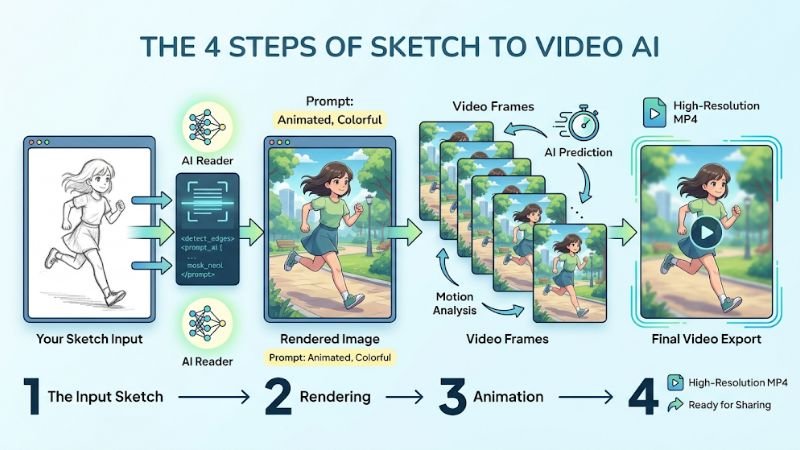
Step 1: The AI reads your sketch
The system detects edges, shapes, and the rough position of objects. It works out what looks like the main subject, what belongs to the background, and how large things are in relation to each other. This is why clear outlines matter so much.
Step 2: Your sketch becomes a finished image
Many tools first render the drawing into a polished still image in the style you choose, such as realistic, cinematic, anime, cartoon, or illustration. Several recent workflow guides describe this as a two-stage pipeline: the drawing is rendered first and animated second. That explains a common complaint, which is that the first frame sometimes looks different from the original lines.
Step 3: The image is animated
A video model then predicts how the scene should move across a few seconds, guided by your prompt. It adds character movement, camera pans, and environmental effects like wind, water, or smoke. The better your prompt describes motion, the less the model has to guess.
Step 4: Cleanup and export
Some platforms let you upscale, extend, loop, or add sound. Others hand you a short clip, often around five seconds, and expect you to join several clips together in an editor. Because sketch to video AI depends on this whole chain, a weakness early on, like a vague drawing, usually shows up later as strange or jittery motion.
Sketch to Video AI vs Image to Video AI
People often mix up these two terms, and the difference matters when you pick a tool.
Image to video AI assumes your input is already a finished picture, like a photograph or an AI render. It animates what it sees and tries not to change much. Sketch to video AI assumes your input is an idea. It has to interpret rough lines, fill in missing details, and decide what the final scene should look like before it moves anything.
In practice, this means sketch-based workflows give you more creative freedom at the start but less predictability. If you need exact fidelity to an existing image, an image-to-video tool is the safer choice. If you want to explore ideas quickly, starting from a sketch is faster and cheaper than producing finished artwork first.
The Best Sketch to Video AI Tools in 2026
Our Top Picks
Short on time? These picks are based on the pricing and feature checks in the reviews below, as of October 2026.
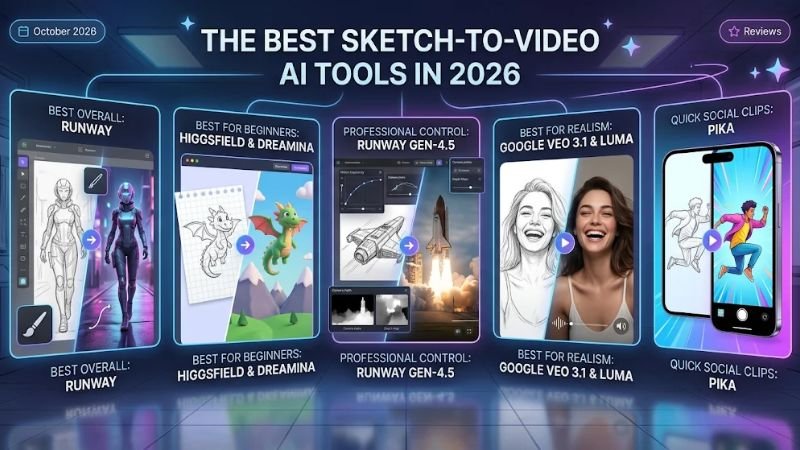
- Best Overall: Runway, for the best mix of motion quality, control, and editing tools. You render your sketch into an image first, then animate it.
- Best for Beginners: Higgsfield Sketch-to-Video or Dreamina, because both accept a drawing directly and keep the settings simple.
- Best for Professional Control: Runway Gen-4.5, ideally on the Pro plan for more credits and higher-resolution export.
- Best for Realistic Video: Google Veo 3.1 or Luma, for cinematic realism (Veo also adds native audio).
- Best for Quick Social Clips: Pika, for fast, simple short clips.
Tool-by-Tool Reviews
No tool wins every category. Below are the options that came up most often in recent reviews and pricing comparisons, grouped by what they do best. Prices below were checked in October 2026 against vendor and pricing-tracker listings. They change often, so confirm them on each official page before you subscribe.
1. Higgsfield Sketch-to-Video
- Best for: Beginners who want one-click styles.
- Sketch support: Direct upload, with no prompt skills required.
- Video quality: Cinematic, though it depends on the model behind each preset (reported to use Sora 2).
- Ease of use: Very easy. Presets include Realistic, Cinematic, Anime, Commercial, and Horror.
- Pricing: Individual plans have started around $9 per month (about 120 credits), with Pro near $29 monthly or $23 billed yearly. Higgsfield has reshuffled its tiers several times in 2026, so check the live page.
- Pros: Fast start, many styles, access to several underlying models.
- Cons: Premium models use credits quickly, and the cheapest plan is limited.
- Verdict: A friendly starting point if you value speed over fine control.
2. Dreamina
- Best for: Quick experiments and free testing.
- Sketch support: A dedicated sketch-to-video tool that often works without a text prompt.
- Video quality: Good, running on Seedance video models.
- Ease of use: Easy, with a simple interface.
- Pricing: Free daily credits are available. Paid Basic is listed at about $15 per month, and introductory discounts come and go.
- Pros: Free daily credits, direct sketch input, low entry price.
- Cons: Free credits are limited, and promotional prices change often.
- Verdict: The best place to try the idea without spending money.
3. Runway (Gen-4 and Gen-4.5)
- Best for: Creators who want control and built-in editing tools.
- Sketch support: Indirect. Gen-4 animates a single image, so render your sketch first.
- Video quality: Excellent motion consistency with Gen-4.5.
- Ease of use: Moderate. There are more settings to learn.
- Pricing: The free plan gives 125 one-time credits. Standard is $12 per month billed yearly ($15 monthly) with 625 credits, and Pro is $28 yearly ($35 monthly) with 2,250 credits. Gen-4.5 uses about 12 credits per second.
- Pros: Fine control, plus editing, lip sync, and upscaling in one platform.
- Cons: Credits go fast. Standard covers roughly 52 seconds of Gen-4.5 per month at best.
- Verdict: The strongest all-round pick if you can spend time learning it.
4. Kling AI
- Best for: Budget-friendly volume and product-style clips.
- Sketch support: Image-to-video, so start from a rendered version of your sketch.
- Video quality: Very good, with Kling 3.0 in current reviews and output up to 1080p.
- Ease of use: Easy.
- Pricing: A free Basic tier exists. Standard was $6.99 for the first month, then about $8.80 per month for 660 credits (listed at $10).
- Pros: Low entry price and fast generation.
- Cons: The intro price is not permanent, so read the renewal rate.
- Verdict: Great value if you generate many clips.
5. Luma Dream Machine (Ray3)
- Best for: Realistic, high-resolution shots.
- Sketch support: Image-to-video, so render your sketch first.
- Video quality: Photorealistic with high resolution (4K has been reported for Ray3).
- Ease of use: Easy to moderate.
- Pricing: Plus is $30 per month ($25 billed yearly) with 10,000 credits. The current pricing page lists no free plan.
- Pros: Strong realism, and commercial use is listed on paid plans.
- Cons: The highest entry price in this list, with no free tier.
- Verdict: Worth it for hero shots where realism matters most.
6. Pika
- Best for: Quick social clips and playful effects.
- Sketch support: Image upload, so start from a rendered sketch.
- Video quality: Good for short clips, less cinematic than Runway or Veo.
- Ease of use: Very easy.
- Pricing: A free plan offers about 80 monthly credits at 480p. Paid plans have been reported from about $8 per month billed yearly, but sources disagree on plan names, so confirm on pika.art.
- Pros: Fast, simple, and cheap to start.
- Cons: A 5-second 1080p clip costs about 40 credits, and commercial rights vary by plan.
- Verdict: A good pick for fast social content, not for polished cinematic work.
7. Adobe Firefly and Canva
- Best for: Adobe or Canva users and brand-conscious teams.
- Sketch support: A sketch-to-image-to-video chain inside Adobe’s tools, and Canva’s Sketch to Life for the image step.
- Video quality: Good and consistent.
- Ease of use: Easy if you already use Adobe apps.
- Pricing: Firefly Standard is $9.99 per month with 2,000 credits (up to about 20 five-second videos), and Pro is $19.99 with 4,000.
- Pros: One ecosystem for image and video work.
- Cons: Video burns credits quickly, and unlimited video sits on the $199.99 Premium plan.
- Verdict: Best when you already live in Adobe or Canva.
8. Google Veo 3.1 (via Flow)
- Best for: Cinematic realism with native audio.
- Sketch support: Use a rendered frame from your sketch as the starting image.
- Video quality: Cinematic, with clips around 8 seconds long.
- Ease of use: Moderate.
- Pricing: There is no standalone price. Flow gives 50 free credits per day, and Google AI Pro is $19.99 per month with 1,000 Flow credits (roughly 10 Quality, 50 Fast, or 100 Lite clips).
- Pros: Realism, audio, and free daily credits.
- Cons: Quality clips are credit-hungry, and Google can change limits at any time.
- Verdict: Top choice for realistic, audio-ready clips.
Whichever you choose, keep in mind that sketch to video AI is still a young category. Features get renamed, plans change, and free tiers appear and disappear, so treat any list, including this one, as a starting point.
Comparison Table: Sketch to Video AI Tools at a Glance
| Tool | Best For | Sketch Input | Video Quality | Starting Price | Main Drawback |
|---|---|---|---|---|---|
| Higgsfield Sketch-to-Video | Beginners, preset styles | Direct sketch upload | Cinematic, model-dependent | About basic plan $9/mo | Credits go quickly |
| Dreamina | Free testing, quick drafts | Direct sketch upload | Good (Seedance models) | Free daily credits; paid about $15/mo | Limited free credits |
| Runway Gen-4.5 | Control and pro editing | Indirect (render sketch first) | Excellent motion consistency | Free 125 credits; paid from $12/mo yearly ($15 monthly) | Credits burn fast |
| Kling AI | Value and product clips | Image-to-video (render first) | Very good, up to 1080p | $6.99 first month, then about $8.80/mo | Intro price is temporary |
| Luma Ray3 | Realistic hero shots | Image-to-video (render first) | Photorealistic, high-res | $30/mo ($25 yearly) | No free plan, higher cost |
| Pika | Quick social clips | Image upload | Good, less cinematic | Free plan; paid from about $8/mo yearly | Plan details vary by source |
| Adobe Firefly | Adobe and Canva users | Sketch to image to video | Good, consistent | $9.99/mo | Video uses credits fast |
| Google Veo 3.1 | Realism with native audio | Image start frame | Cinematic with audio | 50 free Flow credits/day; AI Pro $19.99/mo | Quality clips are credit-hungry |
Prices were checked in October 2026 and are a guide, not a quote. Plans, credits, and promotions shift often, and annual billing is usually cheaper than monthly billing, so confirm each figure on the official pricing page.
How to Use Sketch to Video AI: A Step-by-Step Workflow
Here is a practical workflow that works across almost every platform.
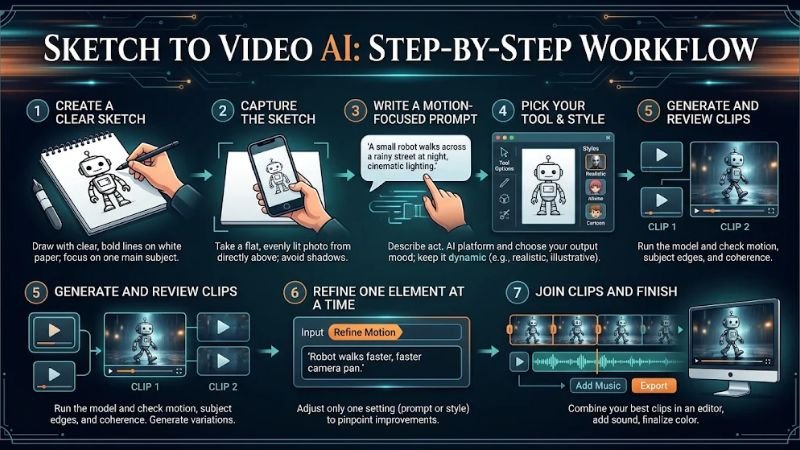
1. Draw with clear, bold lines. Use a dark pen on white paper, or a thick brush on a plain digital canvas. Keep one main subject and a simple background. Skip tiny text, because AI models tend to garble it.
2. Capture the sketch properly. Photograph it in even daylight, from directly above, with no shadows across the page. Crop out the table and anything else around it. Blurry or angled photos lead to messy interpretations.
3. Write a motion-focused prompt. Describe what happens, not what already exists in the drawing. A good formula is subject, action, camera movement, style, and mood. For example: ‘A small robot walks across a rainy street at night, slow camera push-in, cinematic lighting, soft neon reflections.’
4. Pick your tool and style. Choose realistic, anime, illustration, or sketch animation depending on the goal. If it is your first time using sketch to video AI, start with a tool that offers presets so you can see how each style changes the result.
5. Generate a short clip and review it. Look at the first frame, the movement, and the edges of the subject. Do not judge it on the first attempt. Most creators generate several versions.
6. Change one thing at a time. If you adjust the prompt, the style, and the camera motion together, you will never know what fixed the problem. Make a single change per attempt.
7. Join your clips and finish. Combine your best clips in an editor, add music or voiceover, fix the color, and export in the right ratio for YouTube, Instagram, or TikTok.
Tips to Get Better Results From Sketch to Video AI
After you have the basic workflow down, these habits make the biggest difference.
- Keep the drawing simple. Sketch to video AI responds best to a single clear subject. Crowded scenes with many small characters usually confuse the model.
- Describe movement in plain words. Phrases like ‘slowly turns toward the camera’ or ‘wind moves through the grass’ beat vague ones like ‘make it cool.’
- Use consistent characters. If you plan a multi-shot story, draw your character the same way every time and reuse the same description in every prompt.
- Stay with short clips. Five-second generations are usually more stable than long ones. Build longer scenes by joining short shots.
- Control the camera. Name the shot: wide, close-up, slow pan, overhead, tracking. Models follow clear camera language better than abstract style words.
- Plan your credits. Generation is billed per second or per credit, and failed attempts still cost you. Test with the lowest resolution first, then upscale the winner.
- Save your best prompts. When a prompt works, keep it. You will reuse it more than you expect.
Pros and Cons of Sketch to Video AI
Pros
- Speed. What used to take days of storyboarding and animation can be previewed in minutes.
- Low barrier to entry. You do not need animation skills, only an idea and a simple drawing.
- Cheaper idea testing. Sketch to video AI lets you check whether a concept works before paying for production.
- Creative flexibility. One sketch can be turned into realistic, anime, or illustrated styles with a single setting change.
- Great for communication. A moving preview explains an idea far better than a static drawing for clients, teammates, or students.
Cons
- Output may not match your drawing. The AI often reinterprets lines, which is the most common complaint.
- Short clips. Most tools generate around five to ten seconds at a time.
- Character consistency is hard. Faces, outfits, and proportions can drift between shots.
- Credits add up. Retries and higher resolutions use credits quickly, and free plans are limited.
- Licensing questions. Commercial rights depend on the plan and the platform, so you must read the terms.
Who Should Use Sketch to Video AI?
The technology is useful far beyond hobbyists. Here are the groups getting the most value in 2026.
Designers and agencies use it to show clients a moving version of a concept long before a budget is approved. A rough storyboard becomes a moving pitch in an afternoon.
Marketers and small business owners use it to test ad ideas, product teasers, and social clips without booking a studio. It is especially handy for early creative testing.
Teachers and course creators turn hand-drawn diagrams into short animated explainers, which keeps students engaged without a big production effort.
Architects and product designers can bring line drawings and prototypes to life as walkthrough-style previews. Sketch to video AI will not replace proper rendering software, but it is a fast way to communicate an early idea.
YouTubers and filmmakers use it for storyboards, animatics, and mood reels, so they can plan shots before filming.
Parents and kids use it for the simplest reason: seeing a child’s drawing walk, fly, or dance is delightful.
Limitations, Copyright, and Responsible Use
Before you publish anything, a few honest cautions.
First, results are not guaranteed. Two generations from the same sketch can look different, and artifacts like warped hands, flickering backgrounds, or melting objects still appear.
Second, check the license. Free plans often include watermarks and limit commercial use, while paid plans may allow it. Rules differ by tool, so read the terms instead of assuming.
Third, upload only artwork you own or have permission to use. Feeding someone else’s drawing into a generator can create legal and ethical problems, and many platforms prohibit it.
Finally, be transparent. Some social platforms ask creators to label AI-generated content, and audiences generally respond better when you are upfront about how a video was made.
Where Sketch to Video AI Is Heading
The direction of travel is clear. Models are getting better at following a drawing more faithfully, keeping characters consistent across shots, and handling multiple reference images at once. Native audio generation is becoming normal rather than special, and clip lengths keep slowly increasing.
Expect more tools to hide the multi-step pipeline behind a single button, which makes sketch to video AI even easier for beginners. At the same time, professional tools will keep adding finer controls for motion, camera, and editing. The likely result is a split: simple, preset-driven apps for everyday creators and deeper toolkits for studios.
Frequently Asked Questions
What is sketch to video AI?
It is a generative AI technology that converts hand-drawn sketches, storyboards, or concept drawings into animated video clips, usually with the help of a short text prompt.
Is there a free tool for this?
Some platforms offer free credits or a limited free plan, but these are often small, one-time, or watermarked. Free tiers also change often, so check the current pricing page before relying on one.
Do I need to know how to draw?
No. Simple shapes and stick figures can work, as long as the lines are clear and the subject is easy to recognize. A clearer drawing gives the model less to guess.
Can sketch to video AI work with a bad drawing?
Yes, to a point. A messy sketch can still produce a fun result, but the final video may drift further from your original idea. Adding a descriptive prompt helps the model fill the gaps.
How long does it take to generate a video?
Most basic clips take a few minutes, though busy servers, higher resolutions, and complex scenes can make it longer.
Which is the best sketch to video AI for beginners?
Tools with preset styles and a direct sketch upload, such as Higgsfield or Dreamina, are the easiest to start with. Move to Runway or Kling when you want more control or better value for volume.
How long can the videos be?
Usually five to ten seconds per generation. Longer videos are made by joining several clips or by using an extend feature where one is available.
Why does my video not look like my sketch?
Most tools first turn the drawing into a finished image and then animate it, so some reinterpretation is normal. Bolder lines, a simpler composition, and a prompt that names the style you want all reduce the gap.
Can I use the videos commercially?
Only if your plan and the platform’s terms allow it. Free plans often restrict commercial use, so read the license before publishing client or ad content.
Final Thoughts
Sketch to video AI has turned one of the slowest parts of creative work, getting an idea out of your head and into motion, into something you can do over a coffee. It will not replace skilled animators or full production crews, and the results still need patience, testing, and a human eye. But as a way to explore ideas, pitch concepts, and create short visual stories, it is hard to beat.
My advice is simple. Start with a clean drawing, write a prompt that describes movement, test two or three tools on the free or cheapest plans, and compare results before committing to a subscription. Keep your clips short, change one variable at a time, and always check the licensing and pricing on the official pages.
If you do that, sketch to video AI can save you real time and money, and it might just make your next idea easier to share.