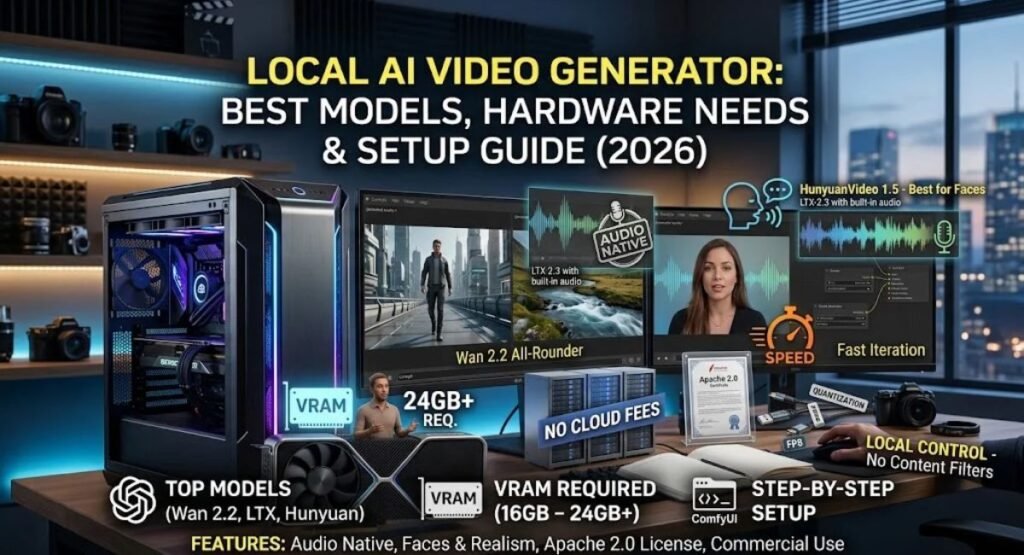
A year or two ago, making a video with AI meant uploading a prompt to a website, waiting in a queue, and paying for every clip. In 2026 that picture has changed. A capable local AI video generator can now run on a single gaming PC, produce clips with sound, and cost nothing per render once the hardware is yours.
But “local” does not mean “effortless.” You need the right model, enough VRAM, and a bit of patience with setup. This guide walks you through everything in plain language: what a local AI video generator actually is, which open-source models are worth your time right now, what hardware you need, how to install one, and where the honest limits are.
By the end, you will know whether running video AI on your own machine makes sense for you, and which model to download first.
What Is a Local AI Video Generator?
A local AI video generator is a video-generation model that runs on your own computer instead of on a company’s servers. You download the model weights, load them in a tool such as ComfyUI, type a prompt (or upload an image), and your GPU creates the video. Nothing is uploaded, and no one sees your prompts.
Most of these tools fall into two groups:
- Text-to-video (T2V): you describe a scene and the model builds the clip from scratch.
- Image-to-video (I2V): you give the model a still image and it animates it.
The models behind them are almost all diffusion transformers (DiT), the same family of architecture used in modern image generators, extended to handle motion across time. When people say “open-source video model” or “open-weights model,” they mean the weights are publicly downloadable. That is not always the same as fully open source, and the license matters if you plan to earn money from your videos. We cover that later.
Why More Creators Are Choosing Local AI Video Generation
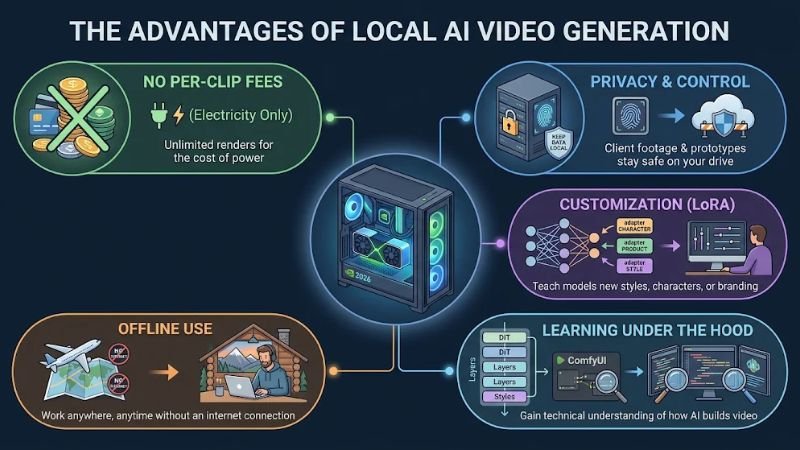
Cloud tools like Sora-style apps are convenient, so why bother with a local setup? There are a few practical reasons.
No per-clip fees. Cloud platforms charge credits for every attempt, and AI video takes many attempts. Locally, your only ongoing cost is electricity.
Privacy and control. If you work with client footage, product prototypes, or unreleased concepts, keeping everything on your own drive removes a real worry. A local AI video generator also has no content filter beyond what you choose to install, which is useful for legitimate creative work but comes with responsibility.
Customization. Open models can be fine-tuned with LoRA adapters, so you can teach one a character, a product, or a visual style. Cloud tools rarely allow this.
Offline use. Once the models are downloaded, you can work without internet, which is handy for travel or unstable connections.
Learning. If you are curious about how AI video works under the hood, running it yourself is the fastest way to understand it.
The trade-off is time and hardware. Rendering is slower than on a big cloud GPU cluster, and the setup takes an evening, not a minute. Keep that in mind as you read on.
Best Local AI Video Generator Models in 2026
The open-source video scene moves quickly, so model names and versions change every few months. Here are the families that keep showing up in serious testing and community workflows. Always check each project’s official repository for the latest release before you download.
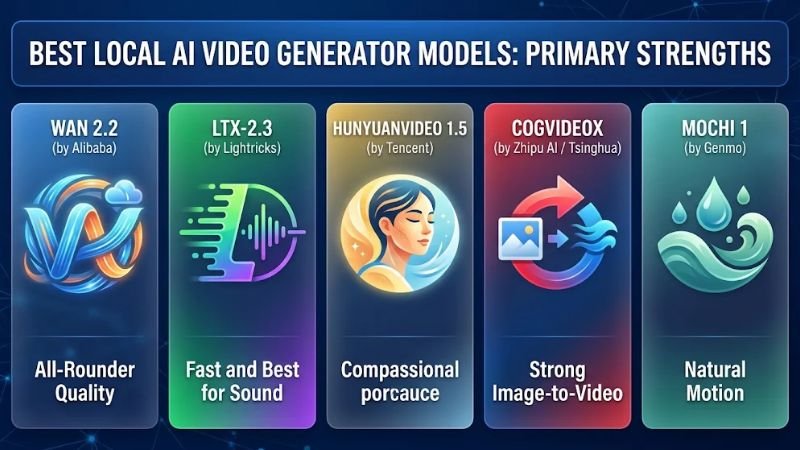
Wan 2.2 (Alibaba): Best All-Rounder and Cleanest License
Wan 2.2 is the model most beginners are pointed to first. Released in mid-2025, it was the first major open video model to use a Mixture-of-Experts design, with roughly 27 billion total parameters but only about 14 billion active at each step. That keeps quality high without the full compute cost.
Its biggest advantage is the license: the official weights are released under Apache 2.0, which is permissive and friendly to commercial work. The community around it is huge, so you will find ready-made ComfyUI workflows, LoRAs, and quantized versions that fit on smaller cards. A heads-up: some websites advertise “Wan 3” or later versions. If you cannot find the weights in the official Wan-AI organization on Hugging Face, treat those claims with caution.
LTX-2 and LTX-2.3 (Lightricks): Fastest and Best for Sound
Lightricks open-sourced LTX-2 in January 2026, and LTX-2.3 followed in March 2026 as a 22-billion-parameter model. Its headline feature is native audio: it generates sound and video together in a single pass, which most other open models cannot do. It also supports high resolutions, up to 4K in the official specs, and it is known for speed, often producing clips far faster than its rivals.
The quality trade-off is that very fine per-frame detail can fall slightly behind the heaviest Wan or Hunyuan runs. The license is a community license that is free for companies under a revenue threshold (reported as $10 million), so read it if you run a business. Newer LTX releases have also been reported since, so check Lightricks’ GitHub page for the current version.
HunyuanVideo 1.5 (Tencent): Best for Faces and People
HunyuanVideo launched in December 2024 as a 13-billion-parameter model and quickly became a favorite for realistic humans, skin, and expressions. The newer 1.5 release is lighter and has a lower VRAM floor than many larger models, making it more approachable on a mid-range GPU. If your project depends on portraits, talking-head style clips, or photorealistic close-ups, test this one first. Its fine-tuning ecosystem is also among the most mature.
CogVideoX (Zhipu AI / Tsinghua): Strong Image-to-Video
CogVideoX is respected for prompt adherence and for animating still images. It is a good pick when you already have a strong image and want to bring it to life, and it is popular in research and technical content.
Mochi 1 (Genmo): Natural Motion
Mochi 1 was one of the first genuinely capable open text-to-video models and is still praised for natural-looking motion physics. It is heavier to run and has been overtaken in some areas, but it remains a useful tool for motion-heavy shots.
Local AI Video Generator Comparison Table
Use this table as a quick reference. Details such as VRAM are approximate and depend on quantization, resolution, and clip length, so treat them as starting points.
| Model | Developer | Best For | Audio | Approx. Comfortable VRAM | License Note |
|---|---|---|---|---|---|
| Wan 2.2 | Alibaba | All-round quality, community support | No (add separately) | 16-24 GB (smaller variants run lower) | Apache 2.0 |
| LTX-2.3 | Lightricks | Speed, native audio, high resolution | Yes, native | 12 GB minimum, 24 GB+ for full model | Community license (revenue limit) |
| HunyuanVideo 1.5 | Tencent | Faces, realism, fine-tuning | No | 14-24 GB | Check repo license |
| CogVideoX | Zhipu AI | Image-to-video, prompt following | No | 12-16 GB | Check repo license |
| Mochi 1 | Genmo | Natural motion physics | No | 24 GB+ | Apache 2.0 |
If you want one simple rule: pick Wan 2.2 for flexibility and licensing, LTX for speed and sound, and HunyuanVideo for people.
Hardware Requirements for a Local AI Video Generator
The single most important number is GPU VRAM. System RAM and storage matter too, but VRAM decides which models you can run at all.
Entry level (8-12 GB VRAM). You can run lighter models or quantized versions, typically at lower resolution and shorter clip lengths. Community roundups report that LTX-Video-style models can start at around 8 GB, with 12 GB being more comfortable. Smaller Wan variants also work with offloading tricks.
Mid-range (16 GB VRAM). This is the sweet spot for most hobbyists. You can run quantized Wan 2.2 and HunyuanVideo workflows at decent quality, although you may wait several minutes per clip.
High-end (24 GB and above). An RTX 4090, 5090, or similar card lets you run larger models with fewer compromises. Some full-size workflows, such as the FP8 versions of the biggest LTX models, are discussed in the context of 32 GB cards.
A few other practical points:
- NVIDIA is the safest choice. CUDA support is the most mature. AMD and Apple Silicon can work with some tools but expect more tinkering.
- System RAM: 32 GB is a comfortable minimum; 64 GB helps when models offload to memory.
- Storage: reserve at least 100-200 GB of fast SSD space. Model files are large and you will want several.
- Expect real render times. One recent hands-on review put a five-second clip at around nine minutes on a consumer setup for a heavy model. Faster models like LTX can be dramatically quicker. Your results will vary.
If your machine falls short, you can still experiment through cloud GPU rentals that host the same open models, which is a good middle path before buying hardware.
How to Set Up a Local AI Video Generator (Step by Step)
The exact steps differ by tool, but the general path is the same everywhere.
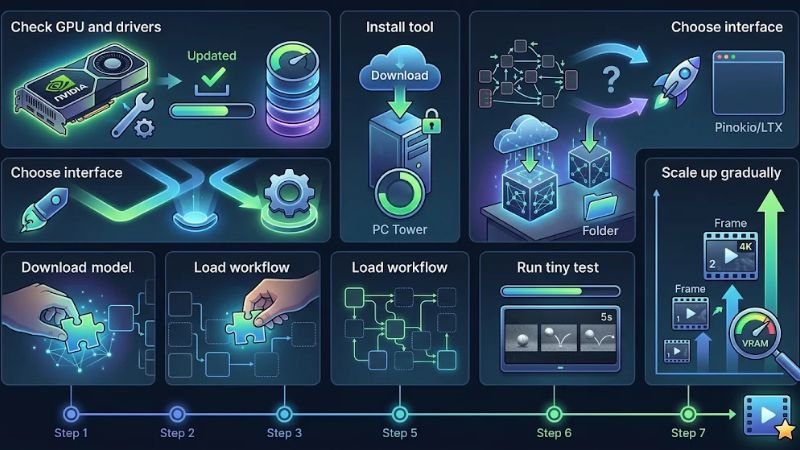
Step 1: Check your GPU and drivers. Update your NVIDIA drivers and confirm you have enough free storage.
Step 2: Choose your interface. The most popular option is ComfyUI, a node-based tool with workflows for nearly every open video model. If you prefer a simpler experience, look at one-click launchers such as Pinokio, or at the official desktop apps some model makers now release, like the LTX desktop app. Beginners usually find these friendlier than raw ComfyUI.
Step 3: Install the tool. Download ComfyUI (or your chosen launcher) from its official GitHub page. Avoid unofficial mirrors.
Step 4: Download the model weights. Get them only from official sources, such as the model’s Hugging Face page or GitHub repository. Place the files in the folders your interface expects.
Step 5: Load a ready-made workflow. Do not build from scratch on day one. The model’s documentation or the ComfyUI examples usually include a starter workflow you can drag in.
Step 6: Run a tiny test first. Use low resolution, a short duration, and a simple prompt. This confirms everything works before you commit to a long render.
Step 7: Scale up gradually. Increase resolution and length step by step, watching VRAM use. If you hit an out-of-memory error, lower the resolution, switch to a quantized model, or enable offloading.
Plan on one to three hours for a first install, mostly spent on downloads.
Pros and Cons of Using a Local AI Video Generator
Pros
- No subscription or per-clip cost after you own the hardware.
- Full privacy: prompts, images, and outputs stay on your drive.
- Deep customization through LoRAs, fine-tuning, and community workflows.
- No usage caps or queues, so you can iterate as much as you like.
- Works offline once models are downloaded.
- Commercial flexibility with permissively licensed models like Wan 2.2.
- Fast improvement: new open models and optimizations appear almost monthly.
Cons
- High upfront hardware cost. A GPU with plenty of VRAM is expensive.
- Slower than top cloud services on a typical consumer card.
- Technical setup. Python environments, drivers, and workflows can frustrate beginners.
- Short clips. Most outputs are still a few seconds, so longer stories require stitching.
- Quality gap in some areas. Open models are strong, but the best closed tools can still win on polish and consistency.
- License complexity. “Open weights” does not always mean free for commercial use.
- Power and heat. Long renders push your GPU hard and raise your electricity bill.
Local vs. Cloud AI Video Generators
The honest answer is that neither is universally better.
Choose local if you generate a lot of video, care about privacy, want custom styles, or enjoy experimenting. The savings add up quickly once you are making dozens of clips a week.
Choose cloud if you only need a few clips, want the highest polish with no setup, or do not own a capable GPU.
Many creators combine both: they draft ideas on their local AI video generator to iterate for free, then send only the final shots to a premium cloud tool when they need the extra quality.
Local vs. Free Online AI Video Tools: Which Should You Try First?
If you just want to test AI video today, a free online tool is the quickest start. Platforms such as Runway, Pika, Leonardo.Ai and PixVerse give you free credits or daily tokens, so you can try text-to-video and image-to-video without installing anything. The catch is that free allowances are small, they change often, and some plans add watermarks or limit commercial use.
A local AI video generator works the other way around. Setup takes longer, but once it runs there are no credits to count and no queue to wait in. The real cost moves to your GPU, storage, electricity and time.
| Factor | Free online tools | Local AI video generator |
|---|---|---|
| Setup | Sign up and start | Install tools, drivers and model files |
| Cost | Free credits, then paid plans | Hardware and electricity, no per-clip fee |
| Limits | Credit caps, watermarks, plan rules | Only your hardware and model license |
| Privacy | Prompts and files go to a company server | Everything stays on your computer |
| Best for | Quick tests and occasional clips | Frequent use, custom styles, full control |
A simple way to decide: test your idea on a free online tool first, and move to a local setup once you find yourself running out of credits or needing more privacy and control. Always read the current plan page before you rely on any free tier.
Tips to Get Better Results from Your Local AI Video Generator
Write prompts like a director. Describe the subject, action, camera movement, lighting, and mood in one or two clear sentences. “A woman walks through a rainy street at night, slow tracking shot, neon reflections on wet pavement” works better than “cool city video.”
Start from an image when you can. Image-to-video gives you tighter control over how the first frame looks, and it usually produces more consistent results than text-only prompts.
Use short clips and stitch them. Generate several short shots, then edit them together in a normal video editor. This is how most polished AI films are made.
Fix a seed while testing. Keep the seed the same while you change one setting at a time, so you can see what actually improves the output.
Upscale and interpolate afterwards. Render at a lower resolution to save time, then use an upscaler and frame interpolation for the final delivery.
Keep your tools updated, but not blindly. New versions bring speed and quality gains, yet they can break old workflows. Back up a working setup before updating.
Licensing and Responsible Use
Before you publish anything made with a local AI video generator, check the license of the exact model you used. Apache 2.0 models are generally the most flexible for commercial work, while community licenses may limit use above a revenue threshold.
Be responsible with the content you create. Do not generate deceptive deepfakes of real people, do not use someone’s likeness without consent, and follow the platform rules where you publish. Many platforms now ask creators to label AI-generated video, and several countries are adding disclosure rules. Labeling your work is simply good practice.
Frequently Asked Questions
What is the best local AI video generator in 2026?
There is no single winner. Wan 2.2 is the best all-rounder with a permissive license, LTX is the fastest and the standout for built-in audio, and HunyuanVideo is strong for realistic people. Choose based on your GPU and the type of videos you make.
Can I run a local AI video generator on a laptop?
Yes, but with limits. A gaming laptop with an NVIDIA GPU and 8-12 GB of VRAM can run lighter or quantized models at lower resolution. Expect slower renders and shorter clips than on a desktop card.
How much VRAM do I need?
As a rough guide, 8 GB is the bare minimum for the lightest models, 12 GB is more comfortable, 16 GB is a good hobbyist target, and 24 GB or more gives you the freedom to run larger models. Always check the model’s official page, since requirements change with updates.
Is a local AI video generator free?
The software and many model weights are free to download, but you pay for hardware and electricity. Some licenses also restrict commercial use for larger companies, so read the terms.
Is local AI video as good as Sora, Veo, or Runway?
It is close in many cases and cheaper at scale, but the top closed tools may still lead in polish, clip length, and consistency. Open models improve quickly, so the gap keeps narrowing.
Do I need coding skills?
Not necessarily. With ComfyUI workflows or one-click launchers, you can get started by following instructions and loading templates. A little comfort with folders, downloads, and troubleshooting helps a lot.
Can I use videos from a local AI video generator commercially?
Often yes, but it depends on the model. Apache 2.0 licensed models like Wan 2.2 are generally the easiest. Others carry conditions, so confirm the license before monetizing.
Where should I download models from?
Only from official sources: the developer’s GitHub repository or their verified Hugging Face page. Unofficial downloads can contain malware or outdated files.
Can I generate AI videos locally?
Yes. If you have a computer with a recent NVIDIA GPU, you can generate AI videos locally using open-weight models such as Wan 2.2, LTX and HunyuanVideo. You download the model, load it in a tool like ComfyUI or a desktop launcher, and render on your own hardware. Cards with 8-12 GB of VRAM can handle lighter models, while 16-24 GB gives a much smoother experience.
Which local AI video generator is best for beginners?
Beginners usually do best with a model that has a one-click or desktop-app route and plenty of ready-made workflows. LTX is popular for its speed and simple templates, and Wan 2.2 is popular for its community support and clear license. Start with whichever one fits your VRAM, run a short low-resolution test, and only then scale up.
Is there a 100% free AI video generator?
Not in the strict sense. Open-source models are free to download and use, but you still pay for the GPU, electricity, storage and your time. Online tools such as Runway, Pika and Leonardo.Ai offer free credits or daily tokens, but those are limited test budgets, and their allowances and watermark rules change often. Check each plan page before you publish anything. For unlimited use without per-clip fees, a local AI video generator on your own hardware is the closest option.
Which AI video generator is best for 18+ content?
We do not recommend any tool for adult content. Mainstream hosted platforms prohibit explicit material in their terms, and an account can be banned for trying. Open-weight models run on your own machine, so no filter stops you, but that does not make everything legal or acceptable. Never create sexual content involving real people without consent, never depict minors in any form, and never make deepfakes of real individuals. Laws on synthetic media are tightening in many countries, and model licenses often include acceptable-use rules. If you are unsure, stay with safe, original, non-explicit creative work.
Conclusion: Is a Local AI Video Generator Right for You?
If you create videos often, value privacy, or want full creative control, a local AI video generator is one of the most rewarding tools you can add to your workflow in 2026. Open models like Wan 2.2, LTX, and HunyuanVideo have reached a level where the output is genuinely useful, not just a tech demo.
Start small. Check your VRAM, pick one model that fits it, install ComfyUI or a simple launcher, and run a short test clip today. Learn the basics of prompting, then grow from there. If your hardware is not ready yet, rent a cloud GPU for a few experiments before spending money on a new card.
The technology is moving fast, so bookmark the official repositories and revisit them every few months. The best local AI video generator for you will be the one that matches your hardware, your license needs, and the kind of stories you want to tell.